Screen Readers
A screen reader is assistive technology software that converts on-screen text, images, and interface controls into synthesized speech or braille output. Screen readers are essential tools for people who are blind, have low vision, or have reading disabilities such as dyslexia.
Popular Screen Readers
Dozens of screen readers exist across operating systems and devices. The most widely used include:
- JAWS (Job Access With Speech) — Windows, commercial
- NVDA (NonVisual Desktop Access) — Windows, free and open-source
- VoiceOver — macOS, iOS, iPadOS, built-in
- TalkBack — Android, built-in
- Narrator — Windows, built-in
- Orca — Linux/GNOME, free and open-source
Screen Reader Market Share by Platform (2024 Survey)
The WebAIM Screen Reader User Survey tracks which screen readers and browsers people use in combination:
| Screen Reader | Primary Browser | % of Respondents | Trend |
|---|---|---|---|
| JAWS | Chrome | 40.5% | Declining |
| NVDA | Chrome | 37.7% | Stable |
| VoiceOver (iOS) | Safari | 10.7% | Growing |
| VoiceOver (macOS) | Safari | 9.1% | Stable |
| TalkBack | Chrome | 6.8% | Growing |
| Narrator | Edge | 2.4% | Growing |
Because JAWS and NVDA together represent the majority of desktop screen reader usage, testing with both on Chrome and Edge covers most real-world scenarios for Windows users.
Screen Reader Feature Comparison
Key capabilities vary across the major screen readers:
| Screen Reader | Braille Support | Cost | Platform |
|---|---|---|---|
| JAWS | Yes | Paid | Windows |
| NVDA | Yes | Free | Windows |
| VoiceOver | Yes | Free | Apple |
| TalkBack | Yes | Free | Android |
| Narrator | Yes | Free | Windows |
| Orca | Yes | Free | Linux |
Technical Details
Good HTML structure is the foundation of screen reader accessibility. Screen readers can infer meaning from visual styling alone — in reality, they rely entirely on semantic markup. Use real heading elements (<h1>–<h6>), not styled <div> or <span> tags, to convey document structure. Provide meaningful alt text on images, and label all form controls with <label> elements or aria-label attributes.
The Accessibility Tree
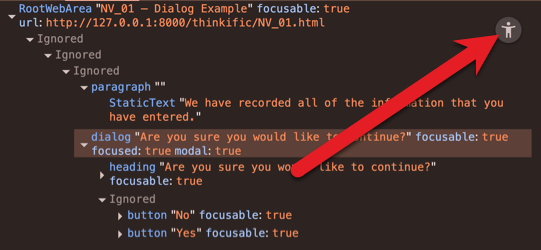
Screen readers interact with the browser's accessibility tree, a structured representation of the page derived from the DOM and ARIA attributes. When a user moves focus to an element, the screen reader reads its name, role, and state. Older approaches relied on direct DOM traversal, but modern screen readers read raw HTML tags directly use the platform accessibility APIs (such as UIA on Windows and NSAccessibility on macOS) to retrieve information from the browser.
Steps to Start Using NVDA
Getting up and running with NVDA on Windows is straightforward:
- Download the NVDA installer from nvaccess.org.
- Run the installer and accept the license agreement.
- Choose Install NVDA on this computer and complete setup.
- Launch NVDA — it starts speaking immediately on load.
- Open a web browser and navigate to any page to begin testing.
- Use Insert + F7 to open the Elements List for headings, links, and landmarks.
- Press Insert + Q to quit NVDA when finished.